Update 2020-06-23:
Apple’s Safari Web Extensions documentation now available, along with an associated WWDC session. These new style Web Extensions appear to follow the same API standard for Chrome and Firefox extensions.
There appears to be a porting utility for converting extensions from other browsers.
They even have a listing of what the boilerplate files do, as I had below for App Extensions. That is definitely progress in terms of documentation writing.
I have not had a chance to play with the new API. But hopefully the new API is standard and more JS-focused than this current hybrid system. The native app extension appears to still be around, but I’m not clear what role it plays right now.
In any case, if you can afford to target Safari 14 only, I would hold off on making new App Extensions. Using the webExtension standard would make everything much easier to maintain, and it is unclear for how long Apple would maintain the app extension model now that webExtensions exist.
Original post:
With the release of Safari 12 and macOS Mojave, Safari has taken a separate path from every other browser in terms of extension support, by creating a new “Safari app extension” model and deprecating old Javascript-based extensions. Like Google Chrome, Mozilla Firefox, and Microsoft Edge, old style extensions have been deactivated (with a scary and very disingenuous warning message that legacy extensions are “unsafe”). However, while all other browsers have moved to support the growing WebExtensions standard, making browser extensions easy to generate across browser platforms. Safari is using its own weird and different extension model for its new Safari App Extension system where:
- the “global” or “background” part of the extension generally must be written in native code (Objective-C or Swift, instead of Javascript). You might be able to get away with embedding the old JS code inside WKWebview instances from the WKWebKit framework, but that is very hacky and depends on the JS code’s complexity.
- the injected code remains in Javascript
- all embedded into a mostly useless macOS container app that magically installs an extension (sometimes) into the browser when first run.
- the container app (with its extension embedded) is distributed on the Mac App Store, as opposed to the old Safari Extension Gallery. the containing app can also be signed using a developer certificate and distributed outside the App Store like any other Mac app, and the extension will still operate – though I wonder if this will change in the future.
The implication, therefore, is that it is no longer enough to be a Javascript dev to make a Safari extension. You’d also have to be a competent Swift / ObjC developer, in addition to being a competent JS developer. In my experience, the result of the set intersection of {Swift devs, JS devs} is quite small.
In any case, leaving aside my personal opinion about this extension system and its undoubtedly negative effects on the already dwindling Safari extension ecosystem, this document constitutes my notes on porting a traditional JS-based Safari Extension to a Safari App Extension.
Disclaimer: These notes are now updated for Safari 13 and XCode 11. Future versions may drastically change the extension model, and I may or may not update this document as things change. Corrections and constructive suggestions welcome in the comments.
The Basics
How to create a Safari app extension
In the good old days, you went into Safari’s Develop menu and hit Show Extension Builder. In the brave new world of Safari App Extensions, extensions are made in Xcode, Apple’s all-purpose IDE.
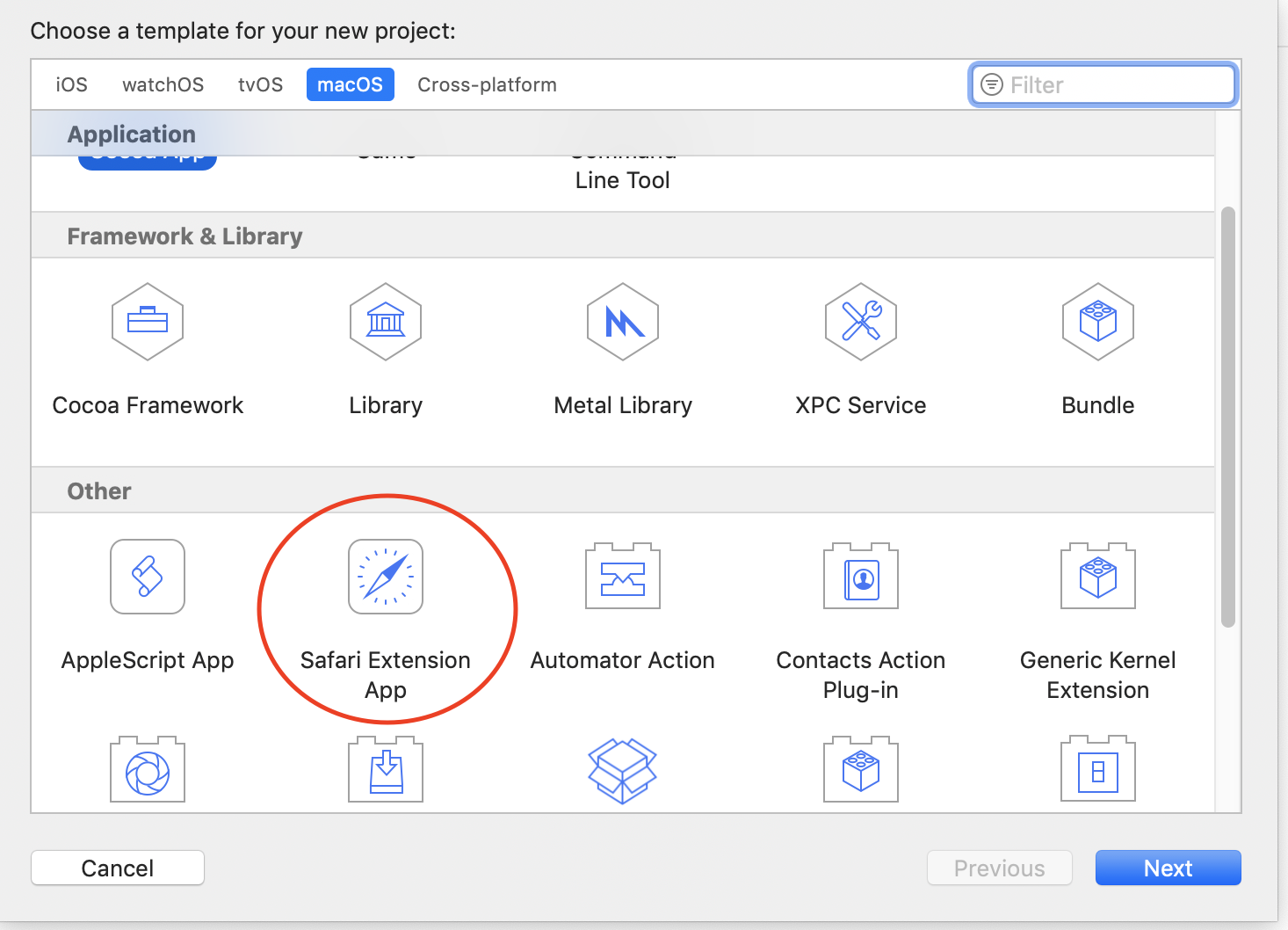
Starting in Xcode 10.1, Apple has made it slightly less troublesome. In New Project, you can select “Safari Extension App” directly as one of the project templates.
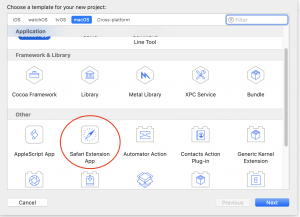
This does the exact same thing as the manual process in Xcode 10.0. It creates 2 targets:
- The containing app — the containing app doesn’t have much functionality unless you are also making a macOS app alongside it. It effectively is just a delivery vehicle for the extension — when the app is first run, the extension is placed in Safari’s list of extensions, for the user to activate.
- The extension — this target contains most of the actual code that will run in Safari’s context.
If for some reason you are still using Xcode 10.0, you have to make a generic Cocoa macOS app, then File -> New -> Target and pick Safari Extension from the list of app extension targets. This also applies if you want to add an Extension target to an app project that was already made.
What are all these boilerplate files
The templates for the containing app are largely irrelevant for stand-alone Safari Extensions. For me, I am building Safari extensions that stand on their own. If you are building an app that happens to offer a Safari extension as a side effect, that purpose is out of scope for this document, but you may find something useful in here for building the extension itself.
The meat of a Safari App Extension lives in the extension target. I am using an Objective-C project in these examples, but the Swift project looks very similar.
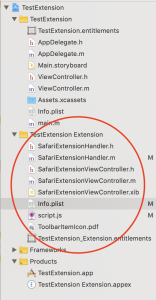
- SafariExtensionHandler — this class is the delegate that gets called by Safari to do things. The main functionality of your extension are invoked from here. In porting old extensions, what used to live in
global.js now needs to be in this file. Obviously, such code need to be ported from Javscript into Objective-C or Swift. This SafariExtensionHandler object gets created and destroyed frequently during Safari’s lifetime, so don’t expect to put global initializers here without wrapping them in dispatch_once or making a custom singleton class.
- SafariExtensionViewController — this class is perhaps more appropriately called
SafariExtensionToolbarPopoverController. This is the ViewController class that is invoked if your extension’s toolbar button (singular — you are only allowed 1 toolbar button, ever) is clicked. As of Safari 12, this class only used to show a popover from the toolbar button. The template code creates a singleton class for this controller.
- SafariExtensionViewController.xib — the Interface Builder file for the toolbar popover. If you’ve done any Cocoa or iOS programming at all, this is effectively the same thing as any nib file. In short, you can lay out your user interface for the toolbar popover in this xib file, and load it during runtime (as opposed to having to programmatically create each UI element).
- Info.plist — This file should be familiar to anyone who made legacy Safari extensions. It is an Apple plist file (obviously) that largely contains the same kind of extension metadata, like what domains the extension is allowed to access, what content script should be injected. The template project’s Info.plist does not contain all the possible keys, like
SFSafariStylesheet (injected stylesheet) or SFSafariContextMenu (context menus), etc. There is also no convenient list of all possible keys, though you can eventually find all of them by reading through Apple’s documentation on Safari App Extension property list keys.
- script.js — this is the content script (what used to be called the injected script in legacy Safari extensions), a Javascript file that is injected into every allowed domain. Javascript code that used to be in injected scripts need to be migrated here. There no longer seems to be a distinction between start scripts and end scripts — if you need the injected script to be an end script, the template code demonstrates that you can wrap it in a callback from the
DOMContentLoaded event.
- ToolbarItemIcon.pdf — the name is self explanatory. This is the icon that shows up in the toolbar if you have a toolbar item.
- .entitlements – Safari App Extensions need to be sandboxed. If you try to turn off the sandbox, the extension will no longer appear in Safari. The entitlements file allows you to grant specific sandbox permissions for the extension. I haven’t played with this much, but I assume this works like any other sandboxed app. It also allows you to specify an App Group. This is also a relatively advanced macOS / iOS dev topic that is out of scope for this document, but in short, if you put your extension and the containing app in the same App Group, they can share
UserDefaults preferences and other system-provided storage space. Otherwise, the containing app and the extension will maintain their own separate preference and storage space.
How to debug
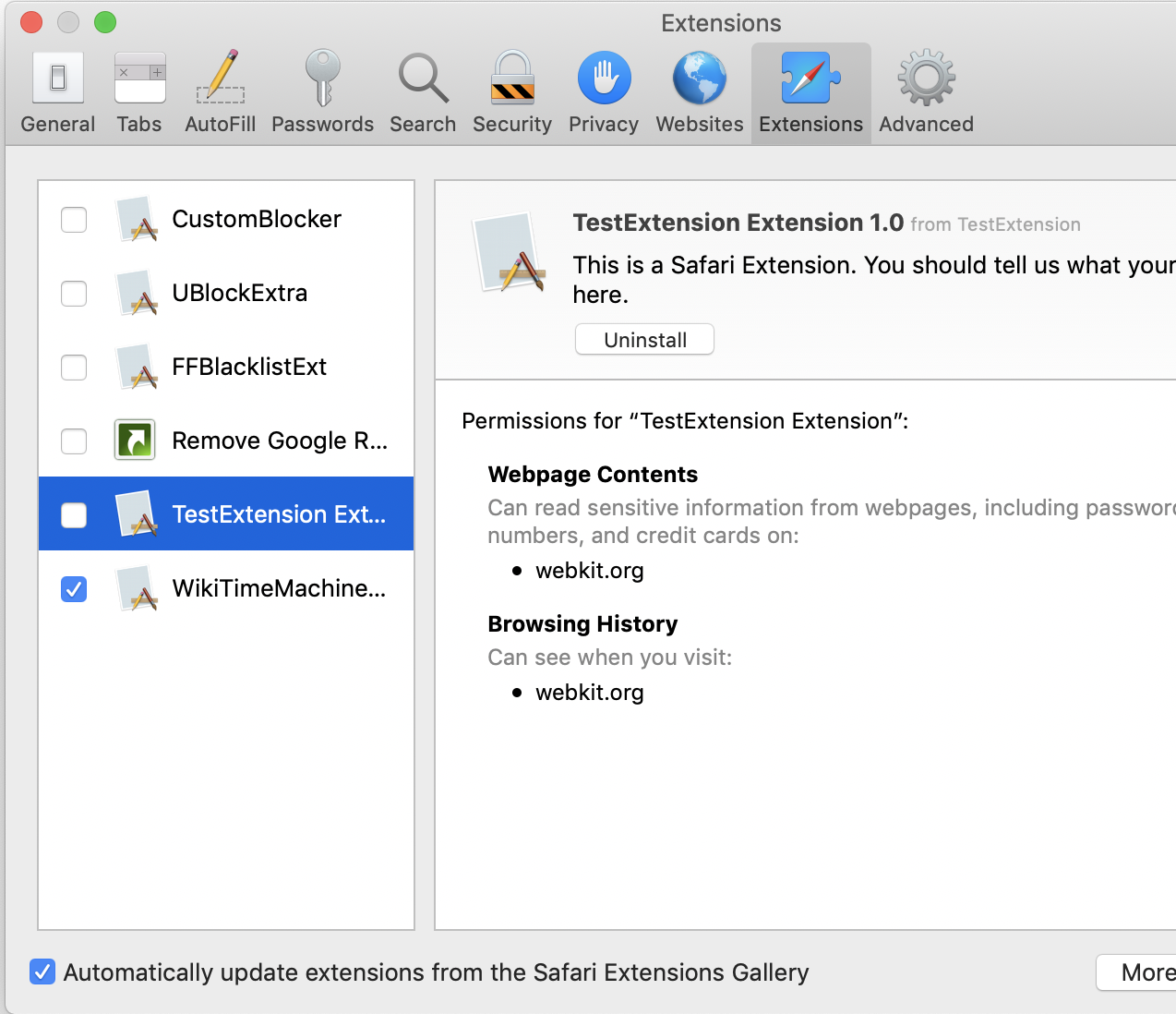
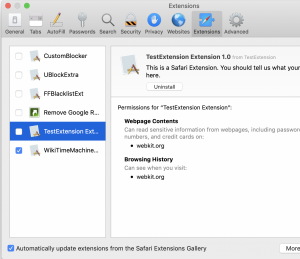
When you click “Run” in the Xcode project for an Safari Extension app, it builds both the extension and the containing app, and then runs the containing app. This should install the extension into Safari, but by default the extension is disabled until the user manually activates it.
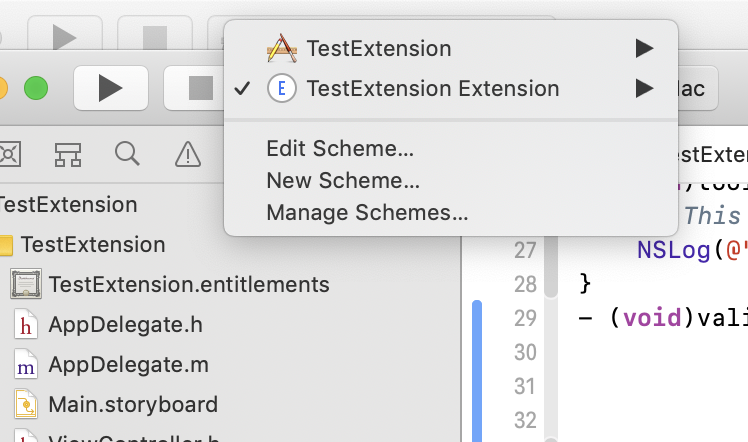
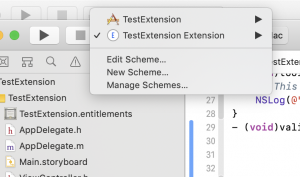
During development, you can instead run the App Extension target itself, by switching the scheme from the XCode toolbar.
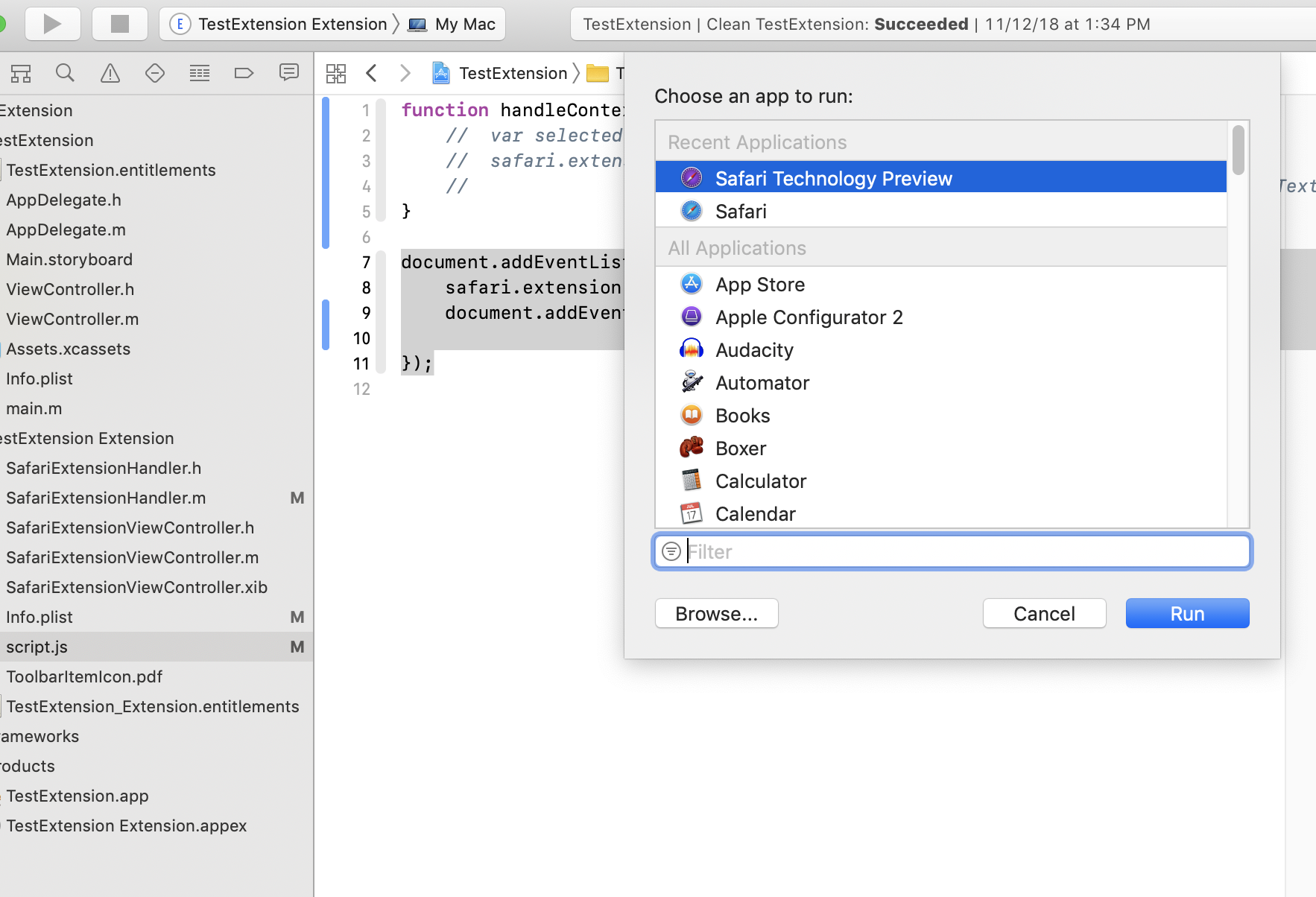
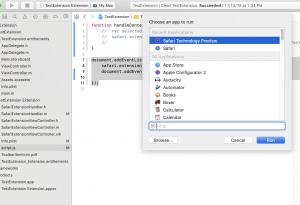
If you run the App Extension itself, a menu pops up asking for which browser to run it with (which can be Safari Technology Preview as well). It will then temporarily install the extension for the duration of the debug session. If run this way, you can also see any NSLog debugging print statements in XCode’s console, as well as use the built-in debugger to step through native code.
Architectural difference: global.js -> SafariExtensionHandler
Legacy Safari extensions were pure Javascript code, split into a global.html page that ran in the background in its own context, and injected script files that were injected into the context of every accessible web page. Only global.html/global.js could interact with the larger Safari extension environment, and only the injected scripts could interact with the currently loaded web pages. These two separate worlds communicated with each other using message dispatches – global.html/global.js would push data to the injected scripts through safari.application.activeBrowserWindow.activeTab.page.dispatchMessage, while listening on safari.application.addEventListener for any messages coming back. Injected scripts would push data to the global page using the tab proxy safari.self.tab.dispatchMessage, and listen to messages from the global page using safari.self.addEventListener.
Safari App Extensions have a similar architecture. However, it has torn out the global.js/global.html portion of this, and replaced it with native code implemented in SafariExtensionHandler.
- From SafariExtensionHandler:
- Listen to messages from content scripts by implementing the method in SafariExtensionHandler:
(void)messageReceivedWithName:(NSString *)messageName fromPage:(SFSafariPage *)page userInfo:(NSDictionary *)userInfo. The template project provides a skeleton for you. It ends up looking something like:
- (void)messageReceivedWithName:(NSString *)messageName fromPage:(SFSafariPage *)page userInfo:(NSDictionary *)userInfo
{
    // This method will be called when a content script provided by your extension calls safari.extension.dispatchMessage("message").
    [page getPagePropertiesWithCompletionHandler:^(SFSafariPageProperties *properties)
     {
         // NSLog(@"The extension received a message (%@) from a script injected into (%@) with userInfo (%@)", messageName, properties.url, userInfo);
         if ([messageName isEqualToString:@"command-from-content-script"]) {
             // do things
             NSDictionary *results = @{@"result" : @"Hello world", @"date" : [NSDate date]};
             [page dispatchMessageToScriptWithName:@"command-done" userInfo:results];
         }
     }
     ];
}
- Dispatch messages to content scripts using:
[page dispatchMessageToScriptWithName:@"messageNameHere" userInfo:....]where page is a SFSafariPage object that is either provided during a delegate callback, or retrievable using the SFSafariApplication class method + (void)getActiveWindowWithCompletionHandler:(void (^)(SFSafariWindow * _Nullable activeWindow))completionHandler;
- (void)contextMenuItemSelectedWithCommand:(NSString *)command
                                    inPage:(SFSafariPage *)page userInfo:(NSDictionary *)userInfo
{
    if ([command isEqualToString:@"contextmenu_1"]) {
        NSLog(@"contextmenu_1 invoked");
        [page dispatchMessageToScriptWithName:@"contextmenu_1_invoked" userInfo:@{@"result" : @"context_menu_1 works!"}];
    }
}
- From content script:
- Listen to messages from the extension using
safari.self.addEventListener, same as before.
- Dispatch messages the global extension using:
safari.extension.dispatchMessage
- Apple documentation on App Extension message passing is reasonably good here
Do I really have to port all my global.js / background.js Javascript code to Swift / Objective-C?
As a test, I made a small Safari app extension using a fairly trivial global.js. The idea is that we embed a WKWebview instance inside the app extension, and have that WKWebview view act as a bridge between the old global.js and the new content script. The WKWebview loads the old global.html file, and shuttles calls from the injected script to the JS inside itself using evaluateJavascript, and then dispatches the evaluated results back to the content script.
For a trivial example, this approach seems to work — though I have not tested it extensively. I imagine for complex use cases though, the time spent re-building global.js to work inside a WKWebview is about the same (or more) than just rewriting it in Objective-C or Swift.
Injecting content scripts and stylesheets
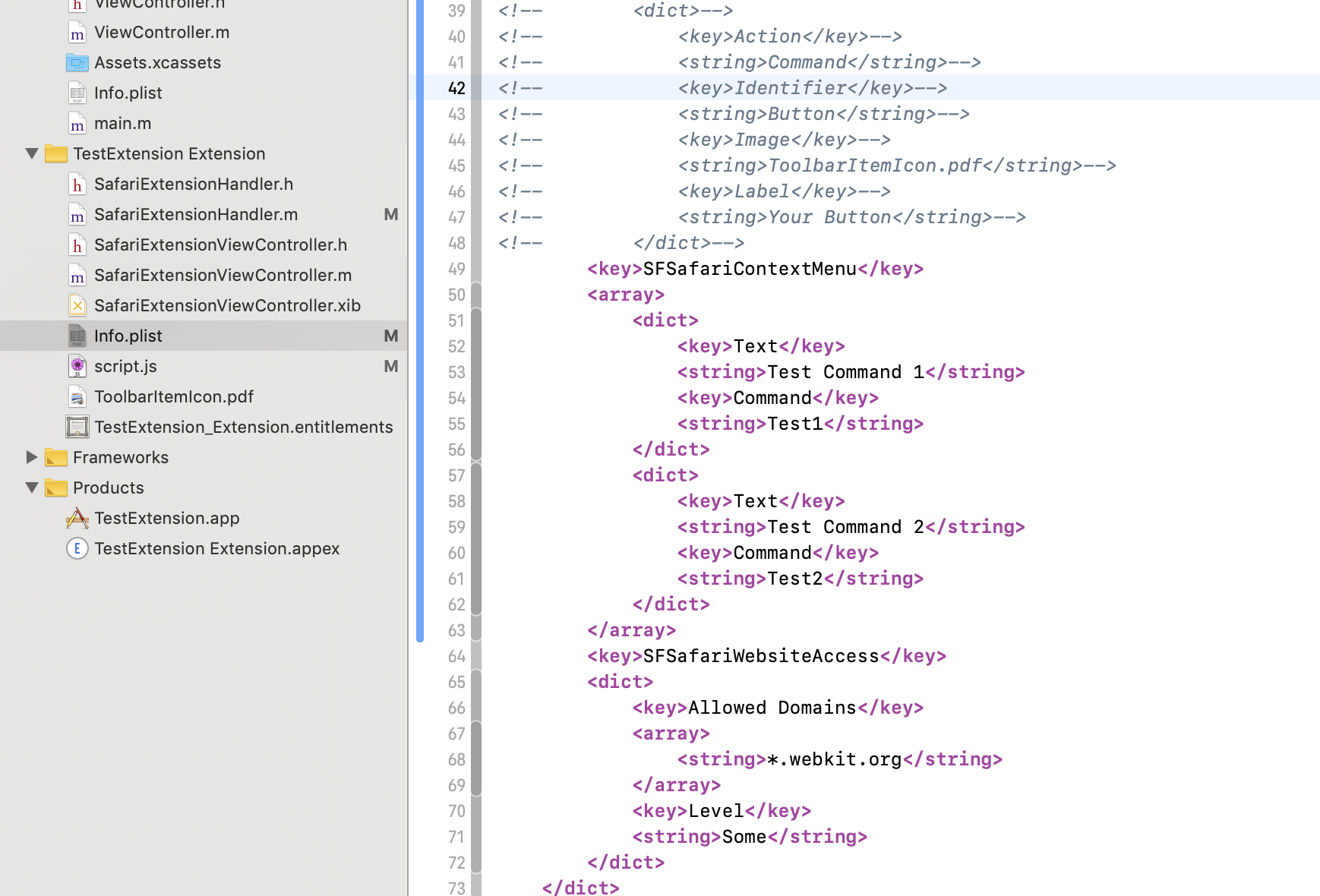
In legacy Safari extensions, the extension builder had a nice UI to add scripts and stylesheets for injection. For app extensions, plist XML will have to be specified manually (or using the built-in plist editor in Xcode)
        <key>SFSafariContentScript</key>
        <array>
	    <dict>
		 <key>Script</key>
		 <string>script.js</string>
	    </dict>
        </array>
        <key>SFSafariStyleSheet</key>
        <array>
            <dict>
                <key>Style Sheet</key>
                <string>injected.css</string>
            </dict>
        </array>
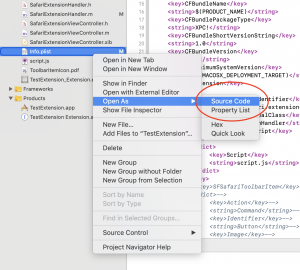
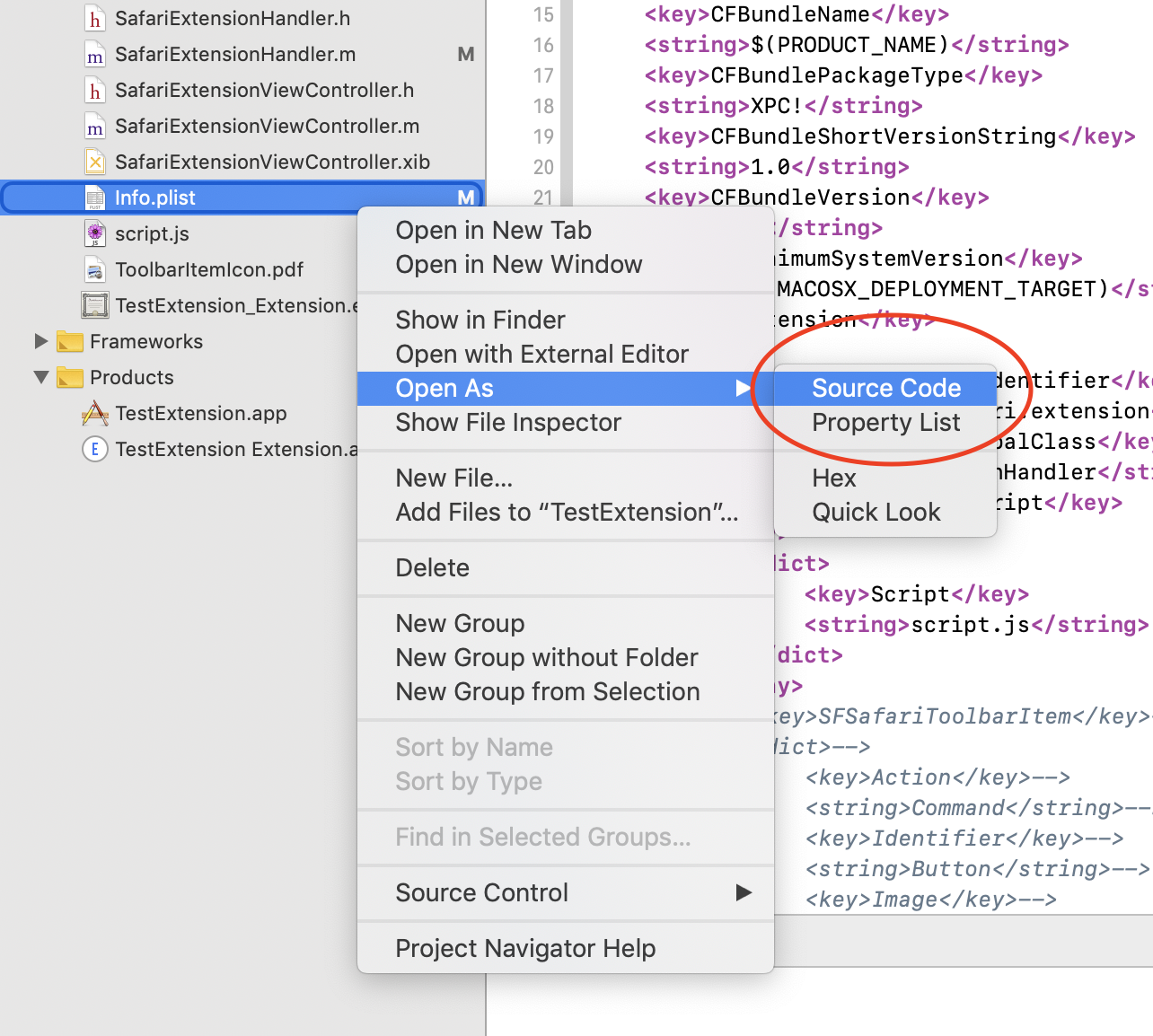
By using Open As -> Source Code, you can edit the XML directly if messing around with plist editor is not your thing. However, plists are a specific format, with arrays and dict representations that are annoying to write raw XML with, if not using a plist-aware editor.
Context menus
Context menus have only changed a little from the legacy Safari extension architecture. You still specify context menus in the Info.plist, and they still interact largely the same way as in legacy extensions.
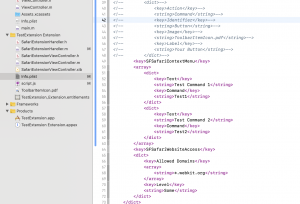
As of this post’s date, Apple’s porting guide states that “In a Safari App extension, there’s no validation of contextual menu items before the menu is displayed.” This is actually wrong. The API does provide for validation of contextual menu items before the menu is displayed.
In SafariExtensionHandler, implementing the validateContextMenuItemWithCommand method will let the extension decide whether to show or hide a context menu item, and whether to change its menu text depending on conditions.
- (void)validateContextMenuItemWithCommand:(NSString *)command
                                    inPage:(SFSafariPage *)page
                                  userInfo:(NSDictionary *)userInfo
                         validationHandler:(void (^)(BOOL shouldHide, NSString *text))validationHandler
{
    if ([command isEqualToString:@"Test1"]) {
        validationHandler(NO, @"Test1 nondefault text");
    } else if ([command isEqualToString:@"Test2"]) {
        validationHandler(YES, nil);
    }
}
As it suggests, validationHandler returns NO for shouldHide if the menu item should be displayed, or YES if it should be hidden. The text parameter allows for the menu text to be changed dynamically during validation.
What if we need to change which menu to show depending on if something exists on the web page or not? In the injected content script, listening to the “contextmenu” event and implementing a handler will allow you to populate userInfo dictionary with data, and validateContextMenuItemWithCommand will be called with that data.
function handleContextMenu(event)
{
    var data = {};
    // do some work and populate data
    safari.extension.setContextMenuEventUserInfo(event, data);

}

document.addEventListener("DOMContentLoaded", function(event) {
    document.addEventListener("contextmenu", handleContextMenu, false);

});
Handling the actual context command, once invoked by the user, requires implementing the method - (void)contextMenuItemSelectedWithCommand:(NSString *)command
inPage:(SFSafariPage *)page userInfo:(NSDictionary *)userInfo
The code is again very similar to how validation is done.
Toolbar: Buttons and Popovers
Safari App Extensions appear to be limited to a single toolbar button. Safari App Extensions cannot provide full toolbars (called “extension bars”, previously), like legacy extensions could.
The toolbar button can be configured to trigger one of two actions: Command which invokes a command immediately, or Popover which creates the popover view as provided by SafariExtensionViewController. The “menu” action that legacy Safari Extensions had, which simply created a menu of commands to choose from, has been removed. See the guide on Toolbar Item Keys.
To respond to a toolbar button click, implement - (void)toolbarItemClickedInWindow:(SFSafariWindow *)window in SafariExtensionHandler.
To show a popover on click, implement - (SFSafariExtensionViewController *)popoverViewController. This should be part of the boilerplate code generated by XCode.
Popovers are no longer HTML pages. They are now native AppKit views, created the same way as any macOS app’s views; legacy popovers would have to be ported to native code, or hacked using a WebView. The UI controls available to the popover are native macOS controls (NSButton, NSTextField, etc.), and must be created and styled using Interface Builder (or programmatically). These UI elements can be wired up to the SafariExtensionViewController singleton, which can provide the delegate methods to respond as the controls are changed.
Notes and references
Converting a Legacy Safari Extension to a Safari App Extension — As of the time of this post, there is a heading in this brief Apple document called “Convert Legacy Safari Extensions Automatically”. You might imagine that this implies there is some kind of tool that automatically converts legacy extensions into app extensions, but this is not the case. That section actually describes how you can uninstall a previous legacy Safari extension in favor of an updated app extension (that you still have to write, yourself, manually). So the “two options” that they mention is actually just one option, with a preface of how to remove a previous version of the extension written in legacy/JS form.
Safari App Extension Guide
Safari App Extension Property List Keys